

Completing an Assignment
Once an assignment has been released by your instructor, you will be able to see it in the “Assignments” tab. You will see a link to your GitHub repository for the assignment at the top. This repository is private, and only you and the course staff can see it. Your instructor may have provided you with some starter code in that repository. Use this repository to complete the assignment.Viewing Submission Results
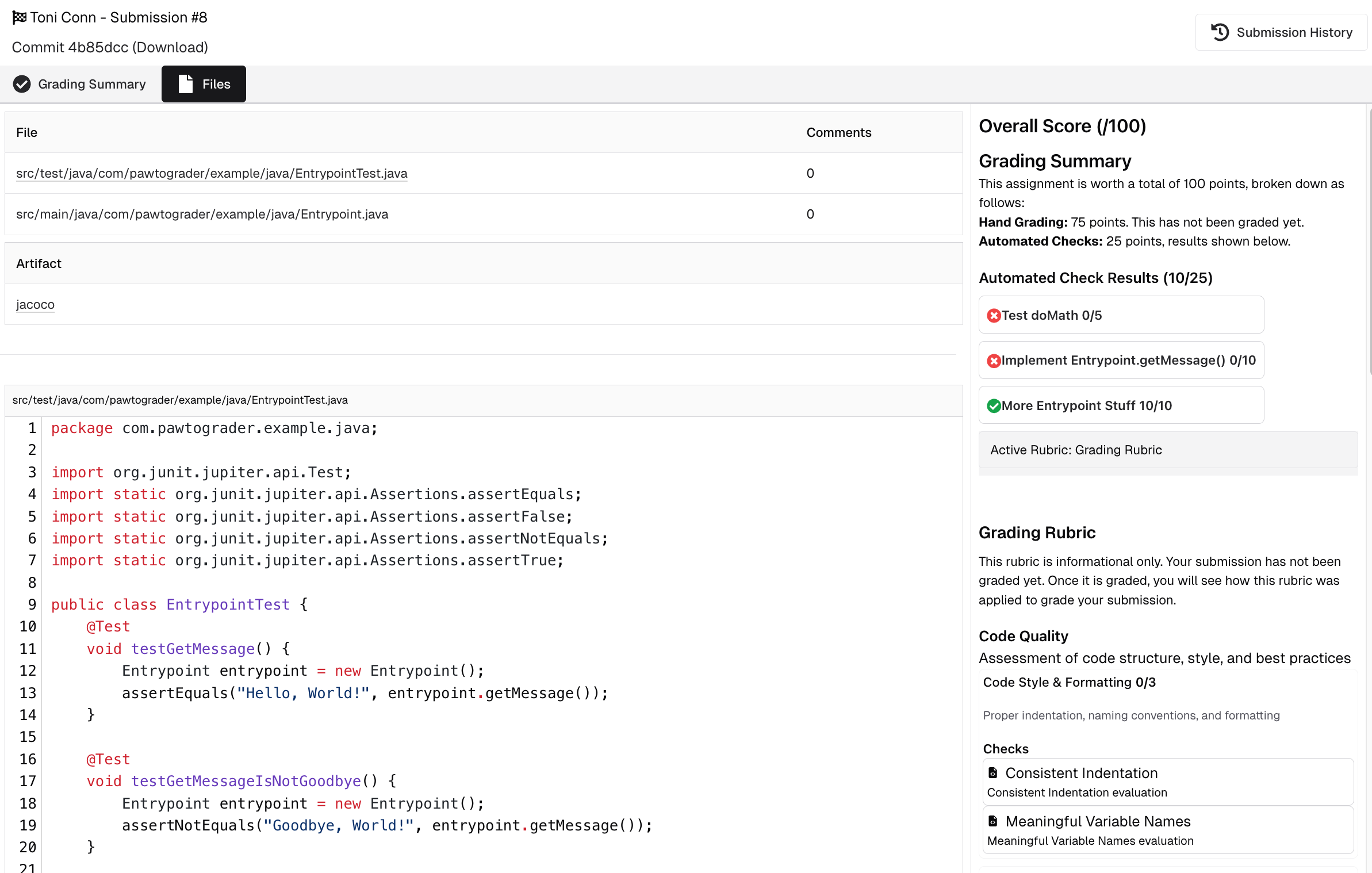
You will see a list of all the submissions you have made for the assignment. The flag icon indicates your active submission, which is the one that will eventually be graded. The “Total Score” will remain “Pending” until after the due date, when the course staff has graded the assignment and released the complete results. Every time that you push changes to your repository, Pawtograder will automatically run your autograder. The submission page may show a preview of the grading rubric (if enabled by your instructor), and will show a summary of the autograder results.Assignment Leaderboard
If your instructor has enabled the leaderboard feature for an assignment, you can view your ranking compared to other students. The leaderboard displays scores and rankings based on autograder results, encouraging friendly competition and helping you gauge your progress. Instructors can choose to make leaderboards optional and less prominent to reduce pressure while still providing performance insights.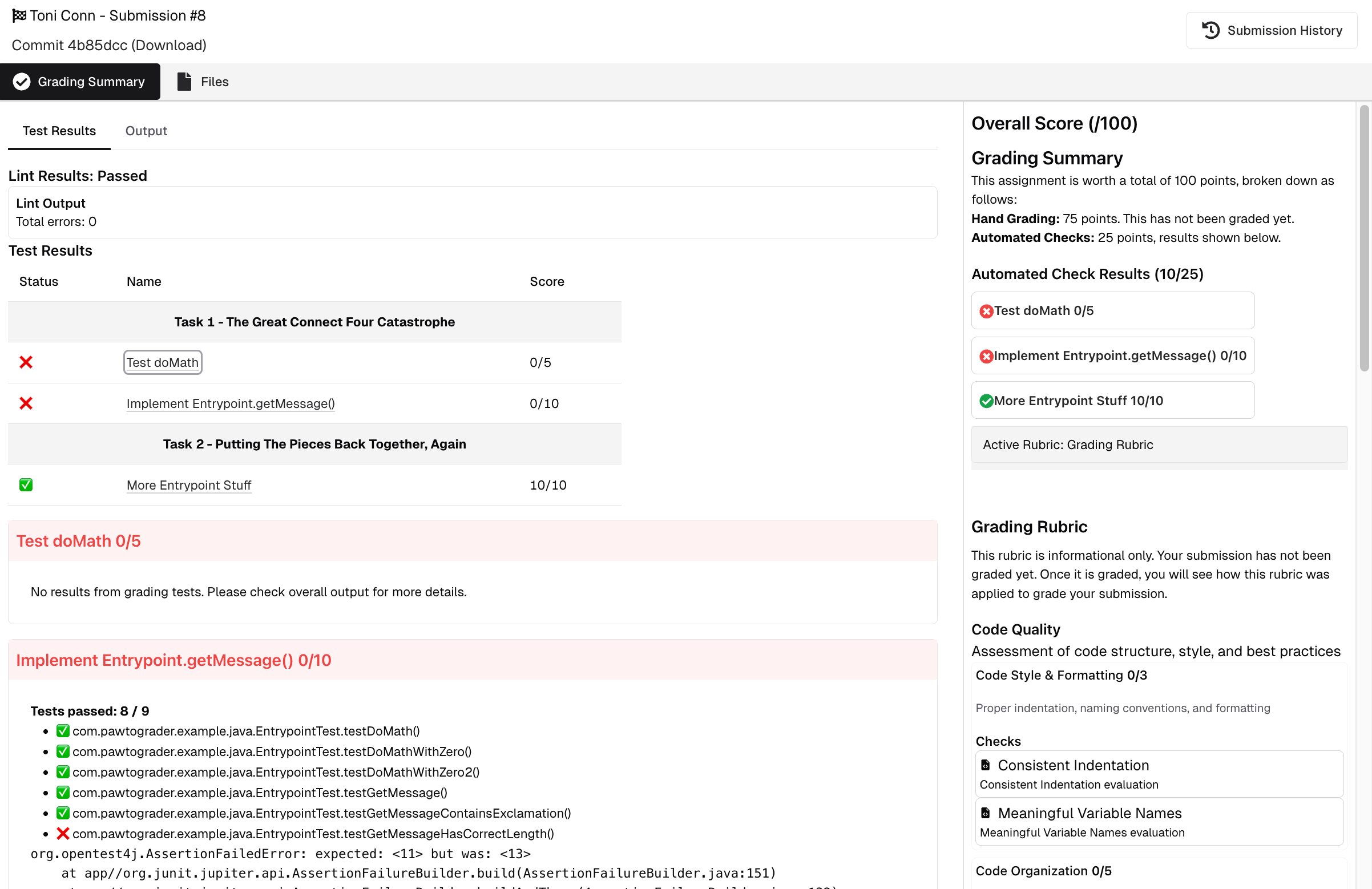
Error Pins
When your submission encounters an error during autograding, Pawtograder may display “Error Pins” - suggested discussion board posts that are relevant to your specific error. This feature helps you:- Find solutions faster: See if other students encountered the same error and found solutions
- Access instructor guidance: View posts where instructors explained how to fix common errors
- Reduce wait times: Get help without needing to join the office hours queue
- Learn from peers: Understand different approaches to solving the same problem